Showing posts with label power savings. Show all posts

Friday, January 15, 2010

Acer Smart Power Manager

Finally some useful software from Acer
Please note: Different Power Smart Manager is meant for different configuration.
Some Power Smart Manager supports Radeon Switchable meant for laptops with ATi Radeon Specification.
So to get the best fit, look for the latest Acer Laptop with specification as close to yours as possible.

Acer Smart PowerManager

Download here
Conserve Power On the Go.
Installable on most Acer/Packard Bell/Gateway/Emachine Laptops (Even on Laptops that doesn't came with this originally).
When you install it on a (eg. Packard Bell) Computer the software calls itself Packard Bell Power Save!

Optical Drive PowerManager

Download here
Conserve Power On the Go.
Installable on most Acer Laptops (Even on Laptops that doesn't came with this originally).
Software originally meant for Acer Aspire Timelines but work on Non Timelines as well.

Monday, November 30, 2009

K10STAT AMD Griffin Processor UnderVolting Guide


FAQ

Why UnderVolt?

Because if a lower voltage can sustain your clockspeed undervolting preserve battery life and reduce heat generated without affecting your CPU performance at all!!

0 performance handicap with less heat output and longer battery life!! (Your yield may vary)

If it is so great why manufacturers don't undervolt?

Because they create processors in bulk you can't expect them to test and undervolt every single processor!

So they simply take the a slightly higher approximate stable voltage and burn the same value into every chip of the same family!

Will it spoil my processor?

No it won't, because it doesn't involve making it hotter.
In non-biological system usually heat destroys and cold preserves.
During testing, BSOD (Blue Screen of Death) is common but after a restart the Processor Voltage is restored to original value.
After finalising the stable voltages then you set the program to run every startup.
I strongly recommend testing ALL THE P-STATES before setting up the final values so your computer will not crash when you are doing your important work (or in the middle of gaming).

Why don't you use Windows Startup to run it?

Microsoft seems to be encouraging running start-ups through Task Scheduler, not to mention Task Scheduler allows good control over program automated execution.

Which Processor is it for ?

AMD Griffin Series Processor, ZM,RM,QL,SI and the new M3XX, M5XX, M6X0 Turion II Processor series.

But I am using Intel Processors?

For Core 2 Duo Processor you can use RMClock, if you are using 64bit Operating System you might need to google for 64bit libraries to replace some of the 32bit libraries. You can google it up.
For Core i3/5/7 users, I haven’t heard of any undervolting tool but I personally seen in the BIOS/EFI ACPI P-State Control is Unlockable, so BIOS/EFI modding is a possible solution.

But I am using AMD TL Series and below Processors ?
Use RMClock as well refer to “But I am using Intel Processors”.

Getting Started


Firstly download K10STAT from here.
I Extracted it to C:\Program Files\K10STAT (K10STAT is 64bit and 32bit capable as well)
Configure K10STAT


When you run K10STAT you should see the menu above.
You can set a maximium of 5 Profiles.

FID: The multiplier for the Processor
(FID doesn't work in AMD Mobile Processors because they are multiplier-locked)

DID: The P-State of the Processor
Note all Processors supported by K10STAT uses K10 Power Design


CPU-Voltage

That is what we are interested in.
To set the voltage for P0 simply select P0 and select the corresponding voltage and apply.
Remember: Min 0.75 V Max 1.2 V!
Caspian CPUs maybe able to run lower than 0.75V
For me I tested -0.05 is the Max Stable voltage for each default state any higher it BSOD!

Up%:

This is the amount of CPU usage load before the processor increase P-State to meet the minmium load requirements.
Currently it is set at 60% meaning it will switch from P2 to P1 when processor detect 60% CPU load and the same applies from switching from P1 to P0.

Down%:

It is basically the opposite of Up %
This is the amount of CPU usage load before the processor decrease P-State to meet the minimum load requirements.

Up (milliseconds):

It is the time the processor takes to switch from one P-State to the next higher P-State.

Down (milliseconds):

It is basically the opposite of Up.
It is the time the processor takes to switch from one P-State to the next lower P-State.
After you have set suitable values (-0.05 recommended on first try).


Use Windows Processor Power Management to test different levels.

Use 4 Windows as shown above, to monitor all the P-States so it is more convenient to assess the values and monitor the states.

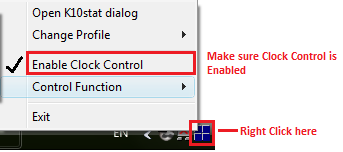
First remember to enable K10STAT Clock Control


To test simply click on the Core of the P-State immediately the Processor will assume the P-State.


Test each P-State by running Intel Burn In (Google and Download) or any suitable CPU loading tool.

For me the voltage values that passed Intel Burn In test are 1.075V, 0.850V and 0.750V.

At 1.025V, it BSOD after 2 mins.
At 1.0372V-1.050V it produced the wrong result.

Test all P-States you have modified so it won’t crash whenever the CPU switches to any of them.

To pass LinPack, the result calculated by the CPU must be consistent.
After you have affirmed the stable voltage values then you may proceed to set it to start automatically.

Setting K10STAT for StartUp

Open Task Scheduler by accessing Start Menu\All Programs\Accessories\System Tools\Task Scheduler

Create a Task


Alternatively you can make it run as a SYSTEM task (as shown below)


If you want the K10STAT icon to appear in the systray run the program under your username.
If you run it as SYSTEM account the program will run too but it will not be visible.
Click "Change User or Group" then Enter "System" then choose "Check Names" then select OK.


or you can create it as a startup process as shown below. (RECOMMENDED because it will run before a logon is required)


**Please note a file called K10stat.dat containing the undervolt settings will be created in the C:\Windows\System32 folder because it is the default path for admin rights unless you changed the "Start In (Optional)" parameters, the setting just under the "Add Arguments (Optional)" parameters as shown below.


The program will load the settings from K10STAT.dat so make sure all the changes are overwritten to the file. When you launch K10STAT manually a new K10STAT.dat will be created in C:\Program Files\K10STAT which Task Scheduler WILL NOT LOAD.
It will only load the K10STAT.dat in C:\Windows\System32 unless you change the "Start In" parameters to "C:\Program Files\K10STAT".

If you do not specify “Start In” parameters, the file “K10stat.dat” will be created in C:\Windows\System32 (Default Administrator Path) as shown below.


The following arguments are available (Source:http://dsus4.blog126.fc2.com/blog-entry-3.html)

Command Line Option
-lp:#(1-5) - load profile#(1-5) and write to MSR.

-nw - Start K10stat with No Window.

-ClkCtrl:#(0-4) - Enable Clock Control by K10stat.
0: No Control
1: Control clock of each core.
2: Control clock of all cores together (Criterion is most loaded core).
3: Control clock of all cores together (Criterion is average of all cores).
4: Control clock of all cores together (Criterion is least loaded core).
If you set -ClkCtrl:2 you get better performance at the expense of more power consumption.
Because Windows proceed on the assumption that cores are unganged by default.

AMD K10 Processors were designed originally to use unganged mode to conserve power.

-StayOnTray - use this option with -nw for Clock Control Mode.(Note after a sleep if the CPU registers are resetted, voltages will revert to default, hence you need -StayOnTray to ensure it is always running in the background)
e.g.Target:
"C:\Program Files\K10stat\K10STAT.exe" -lp:1 -ClkCtrl:2 -StayOnTray -nw


Finally you can Control your CPU using the K10STAT Systray if you enabled -StayOnTray manually as well.


-ClkCtrl:#(0-4) - Enable Clock Control by K10stat (Refer to above).
0:No Control

1:Control clock of each core.
UnGanged means each CPU Core #0 & #1 operates independently of each other so at any one time their frequency and DID could be different.(This is the original intent of the design of the Turion Chips as they are given different power planes.)

2:Control clock of all cores together (Criterion is most loaded core).
This means the CPU will raise/drop the DID of Core #0 & #1 together when it detects the one of higher Core has reached the criteria for a Frequency boost/Throttle Down.

3:Control clock of all cores together (Criterion is average of all cores).
This means the CPU will raise/drop the DID of Core #0 & #1 together when it detects the average of both core has reached the criteria for a Frequency boost/Throttle Down.

4:Control clock of all cores together (Criterion is least loaded core).
This means the CPU will raise/drop the DID of Core #0 & #1 together when it detects the one of lowest Core has reached the criteria for a Frequency boost/Throttle Down.


A new function called Lock-P-state is available in new versions of K10Stat.

It is another way you can lock the P-state for P-state testing again you should enable Clock Control before performing the P-State Testing.

Down Core refers to switching off 1 of the Cores either Core0 or Core1.

Testing

__________________________________________________________________


Original Factory Default Settings
_________________________________________________________________________


UnderVolted 1.075V
In Unganged Mode
__________________________________________________________________


UnderVolted 1.075V
In Ganged Mode (Based on highest core)
__________________________________________________________________

Thats All !

AMD Technical Documentation Regarding Turion Processors here

(Contains Temperature Limits P-States and Voltages)

Thursday, October 1, 2009

How To Choose What Laptop System To Get?

Basically there are only a few questions you need to ask.
1.Size

How big you need your laptop to be?
Keep in mind size is related to weight, the smaller the laptop the lighter it usually is.
<12.1>
13.1 inches (Mainstream Laptops)
14.1 inches (Mainstream Laptops)
15.1 inches (Mainstream Intensive Gaming Laptops)
16.1 inches (Desktop Replacement)
>16.1 inches (Desktop Replacement)

Usually if you need to move it around 14.1 -15.1 inches would be around the max for mobility.

2.Usage

Processor

Intel

For Intel Processor typically it is easily identified
Intel Core i (Processor Class Number) - (3 Digit SKU Number)(Alphabet 1)(Alphabet 2)

The Processor Class Number is either 3/5 or 7.
3 refers to the low end Processors
5 refers to the mainstream Processors
7 refers to the high end Processors
The 1st Digit SKU Number refers to the instruction set in the Processor.
3X0 means
  1. No Intel® Turbo Boost Technology,
  2. No Intel® Virtualization Technology for Directed I/O (VT-d), 
  3. No Intel® Trusted Execution Technology, 
  4. No AES New Instructions
4X0 means
  1. No Intel® Virtualization Technology for Directed I/O (VT-d), 
  2. No Intel® Trusted Execution Technology, 
  3. No AES New Instructions
5X0 and above
  1. All Instruction Set Supported
The 2nd Digit refers to the different Frequency of the Processor Family

For the alphabet there are a number of fixed Alphabets
M - Mainstream
Q - Quad Core (4 Cores, 8 Threads, No Intel HD Graphics due to high TDP)
X - Xtreme (Unlocked Multiplier)
U - Ultra Low Voltage (Low Frequency + Low Voltage)
L - Low Voltage (Low Voltage only)
E - Embedded (Not Upgradable)
AMD

For AMD Processor it is not as easy.

Generation Griffin
Identifier:
AMD (Model) X(No. of Cores) (SKU Alphabet)-(Frequency Identifier No.)(Odd/Even Last Digit)
  1. Turion refers to high end model
  2. Athlon refers to mainstream model
  3. Sempron refers to low end model
X2 refers to Dual Core

Ultra refers to Total 2MB L2 Cache otherwise 1MB L2 Cache or less.

ZM refers to Turion Processor with 3 Power State
RM refers to Turion Processor with 3 Power State
QL refers to Athlon Processor with 2 Power State
SI refers to Total 512 KB Cache with 2 Power State
Frequency Identifier No. starts from 4X to 8X.
  1. RM-70 starts from 2GHZ (Every 2 increase Frequency Increase by 100MHZ ) Odd Last Digit refers to an increase in HyperTransport Frequency from the Even Digit SKU  
  2. RM-80 starts from 2.1GHZ (Every 2 increase Frequency Increase by 100MHZ ) Odd Last Digit refers to an increase in HyperTransport Frequency from the Even Digit SKU  
  3. V refers to Low Voltage Processor
Generation Caspian
Identifier:
AMD (Model) (Generation II) Ultra (No. of Cores) (Type Alphabet) (3 Digit SKU No.)
  1. Turion refers to high end model
  2. Athlon refers to mainstream model
  3. Sempron refers to low end model
Generation II refer to K10 Architecture

Ultra refers to Total 2MB L2 Cache otherwise 1MB L2 Cache or less.

Type Alphabet
  1. M refers to Mainstream
  2. L refers to Low Voltage
3 Digit SKU
6XX refers to Turion Ultra Series Starting from 2.4 GHZ, every increment in 20 increase by 100MHZ with 5 Power States
5XX refers to Turion Series Starting from 2.2 GHZ, every increment in 20 increase by 100MHZ with 5 Power States
3XX refers to Athlon Series Starting from 2.0 GHZ, every increment in 20 increase by 100MHZ with 3 Power States
Note Starting Frequency of L Series differ from M Series

Generation Champlain
 
The Generation Caspian adds Quad Core Mobile Processor to the market.

Identifier: X NNN
X is either X for Black Edition (Unlocked Multiplier 45 Watt TDP ), N for MainStream (35 Watt TDP) & P for MainStream Lower Power Consumption (25 Watt TDP), V for Low End (25 TDP Single Core).

1st Digit refers to SKU
9 - Quad Core with 21.3GB/s HyperTransport
8 - Triple Core with 21.3GB/s HyperTransport
6 - Dual Core with 21.3GB/s HyperTransport
5 - Dual Core with 17GB/s HyperTransport
3 - Dual Core with 64bit Floating Point Unit (I suspect it is the old Caspian Refresh) (All the new Champlain should have 128Bit Floating Point Units) 17GB/s HyperTransport
1 - Single Core with 64bit Floating Point Unit

All Champlain Generation has 0.5 MB L2 Cache per CPU Core.

Graphics (For Gaming GPU > CPU)

For occasional gaming get at least some decent graphics from Nvidia, ATi.
For Intel Graphics if you must at least go for 3150,4500MHD or the new Intel HD Graphics.
They have Video Codec Decoding Abilties for Adobe Flash 10.1.
For ATi any Radeon HD will do, DO NOT go for Radeon Xpress they are obselete.
For Nvidia, go for anything below 8000 Series. 7000 series are obselete.
Both Nvidia 7000 Series and Radeon Xpress do not support GPU computing and DirectX 10
Use Notebookcheck as a rough guide for gaming performance.
Class 3, Class 2, Class 1 are suitable for occasional gaming.

For more intensive gaming consider getting Class 2 and Class 1 Graphics however they are most available only on 14.1/15.1 inch and above laptops.
Reason being more powerful graphics requires more powerful fansink these contributes to size hence usually they can only be found on 14.1 inch and above systems.

RAM
I don't really bother as it is very easy and cheap to upgrade laptop RAM.
You get more cost saving upgrading RAM yourself than buying a high RAM laptop.

Harddisk
Size is of no concern as they come with at least 120GB and that is more than sufficient.

Edit:
With regards to how good a laptop is in terms of quality you have to look at the design layout.
1) Google the motherboard prints of the particular laptop
2) Heatsink size must be sufficiently large enough particularly for AMD Processor Laptops and those with Nvidia/ATi GPU, larger mass allows higher heat capacity so temperature will not be too high.
The GPU, CPU and Northbridge must not be too close to each other.

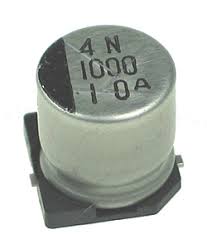
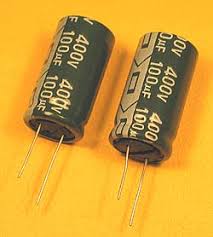
3) The capacitors must be of high quality

High Quality Capacitor
Lower Quality Capacitor

Sunday, March 15, 2009

Power Savings With Power Plan

After using CPU-Z for a while you will notice that the CPU Core Voltage is actually not a constant value

For my AMD Turion X2 RM-72 Processor (Differs according to Processor Model)
P-State 1 is 2.100GHZ @ 1.100V
P-State 2 is 1.025GHZ @ 0.950V
P-State 3 is 0.525GHZ @ 0.800V
This is because when Clock Frequency is reduced Processor no longer requires more power to maintain stability. This is the main operating principal behind Quiet & Cool Technology

<--Credit to ComputerBase.de-->

If you check the diagram above you will notice while there are 3 P-States for RM & ZM Processors, there are only 2 available to QL & SI Processors.

Hence this indicates during idle RM & ZM Processors save more power than QL & SI Processors as they are able to go into deeper, more power saving P-States.

Hence if you are thinking about getting AMD Powered Laptop look out for ZM & RM Processors only and don't go for QL Processors since QL Processors are similarly priced for poorer Power Savings.

To take full advantage of the AMD Processor Power Saving Capability in Vista
You should create 3 Power Plans

Set Maximum Processor state to 100%, 50% and 25% for 3 different Power Plans
This will cap the Maximum CPU Voltage to 1.100V , 0.950V and 0.800V respectively
(This is for reference purposes only as different CPU has different Voltage Levels)

For example when you are surfing the internet while running on battery you might want to choose power plan that caps voltage at 0.800V to save more power.

You can argue that the processor is already doing the throttling automatically hence there is no need to interfere however, occasional CPU spikes can occur to push the frequency. Therefore by limiting max frequency you are limiting the power usage explicitly.

Another advantage you will get is that the CPU Core temperature will fall below 50 degrees if you HWMonitor it

You may think 500MHZ will lag your system, but remember this is 500MHZ Dual Core Turion Processor.
Moreover on Acer Aspire 4530, the Windows Vista Desktop rendering is offloaded to the Nvidia 9100M G GPU hence there is little or no load on Vista as compared to any Intel Graphics Solution.

However do note when running different Applications consider the Processing Power requirements. Otherwise you might encounter slow performance.
Streaming video like youtube requires higher performance or you will encounter frame skips on the videos.

The above is for Windows Vista which supports more flexible and advance Power Settings

For Windows Xp you will need a third party program Speedswitch XP as suggested by AMD Forumer Turion64Ultra

As the instructions on SpeedSwitch Xp is available on it homepage I will leave the exploration of this third party software to people who are interested

Saturday, January 24, 2009

Nvidia PowerMizer

PLEASE NOTE:
Since Nvidia driver Geforce version 185.XX, perflevelsrc is no longer used for controlling GPU throttling.
In Driver Version 19X.XX the GPU performance control is in the control panel.

If your graphics card is running overheating frequently when monitored using HWMonitor and you happen to be using Nvidia Graphics this post is for you

Note:
PowerMizer is a feature created by Nvidia to save power and reduce heat on Graphics Card
PowerMizer is built into all the graphics card
It is optional for Desktops because Desktops have infinite power from Wall Sockets and manage heat well
However it is very essential for Notebooks as they have to conserve power and produce less heat when no intense graphical application is running

Run “Regedit”

Go HKEY_Local_Machine\SYSTEM\CurrentControlSet\Control\Video\{ Your graphics adapter}000 and 0001

To locate the registry entry expand all the entries until you see one with lots of registry setting That will be the the registry containing your Graphics Options


Right click on the right Window to create a new DWORD 32bit value
The value name change to “PowerMizerEnable” value select “1″ in hexidecimal
Repeat
The value name change to “PerfLevelSrc” value data “3333″ in hexidecimal


Reboot
Verified using GPUZ and HWMonitor

The Result

After PowerMizer is activated successfully you should see the GPU Clock drop below default clock at idle

Optional:

If you want finer control over PowerMizer change “PerfLevelSrc” values to achieve desired effect

  • PerfLevelSrc=0×2222 - fixed PowerMizer mode (and appropriate fixed frequency) is used for battery power source and fixed PowerMizer mode is used for AC power source, these PowerMizer modes may be the same or different
  • PerfLevelSrc=0×2233 - fixed PowerMizer mode is used for battery power source and adaptive clock frequency strategy is used for AC power source
  • PerfLevelSrc=0×3322 - fixed adaptive clock frequency strategy is used for battery power source and PowerMizer mode is used for AC power source
  • PerfLevelSrc=0×3333 - adaptive clock frequency strategy is used for battery and AC power sources